> For the complete documentation index, see [llms.txt](https://docs.artar.es/project-creation/llms.txt). Markdown versions of documentation pages are available by appending `.md` to page URLs; this page is available as [Markdown](https://docs.artar.es/project-creation/menu-animation.md).
# Menu animation
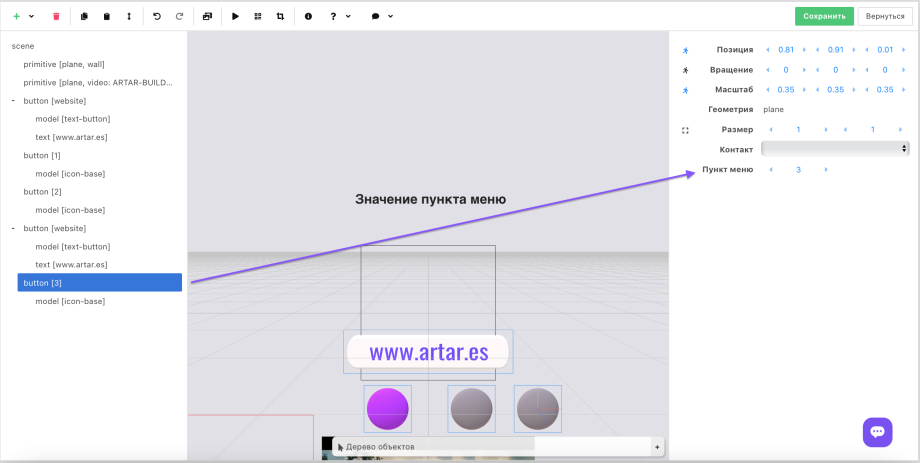
The object type "Button" has a setting "Menu item".
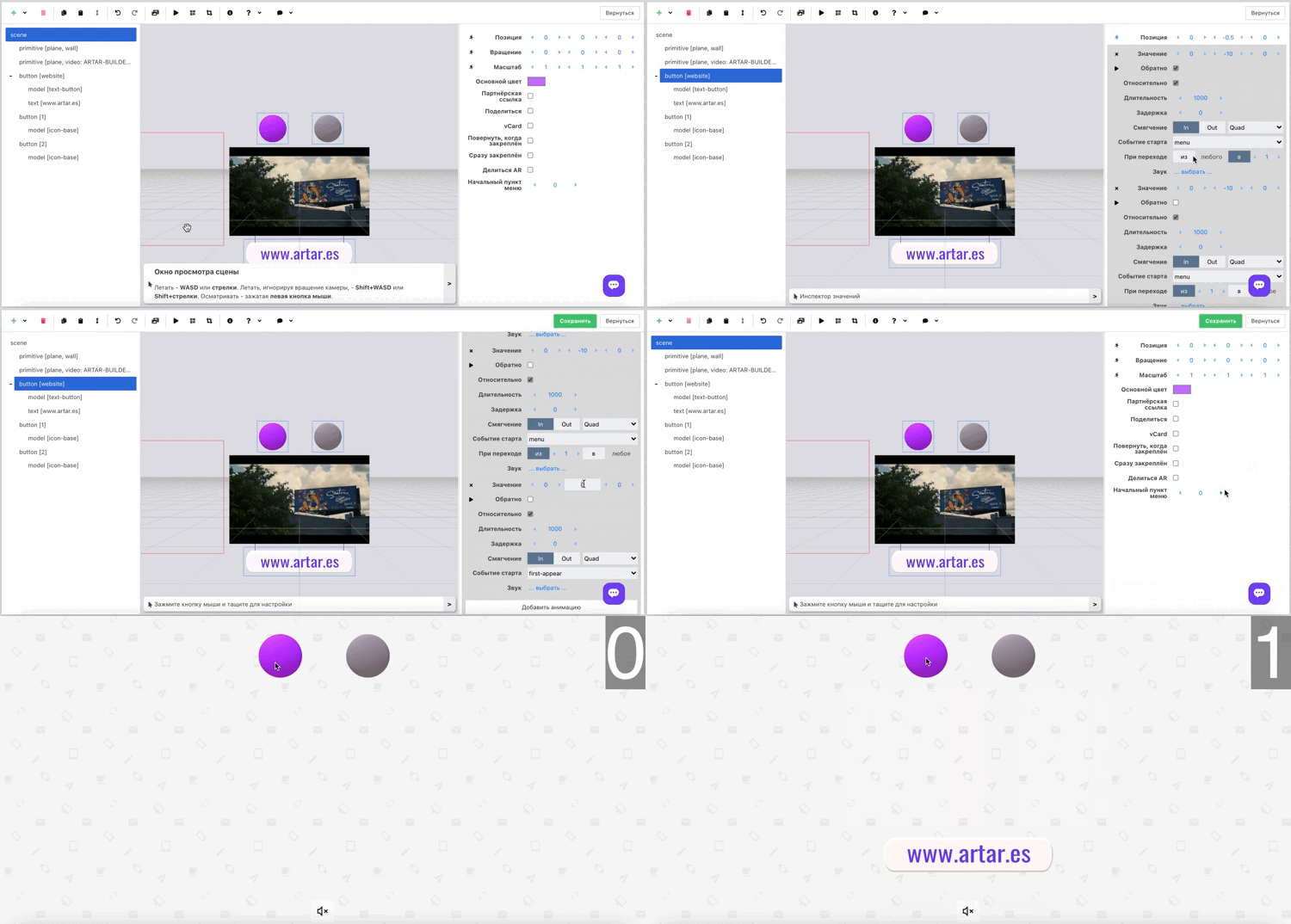
There is a hidden variable in the open project — the menu item number. By default the scene's start state is zero. And it returns to it on a repeated click.\
\
When you press a button with a menu item, the number changes to that item. If you click again, it will reset to zero. If the item is zero, it will also reset.\
\
The animation will trigger when the number has changed.\
\
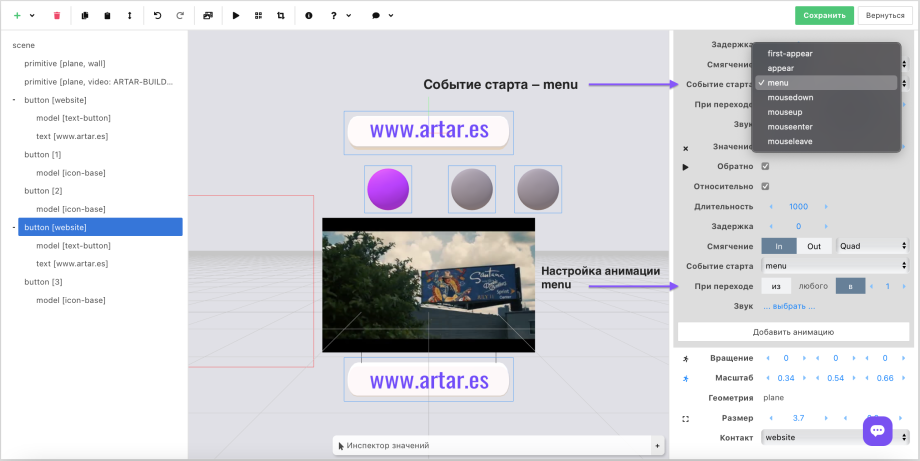
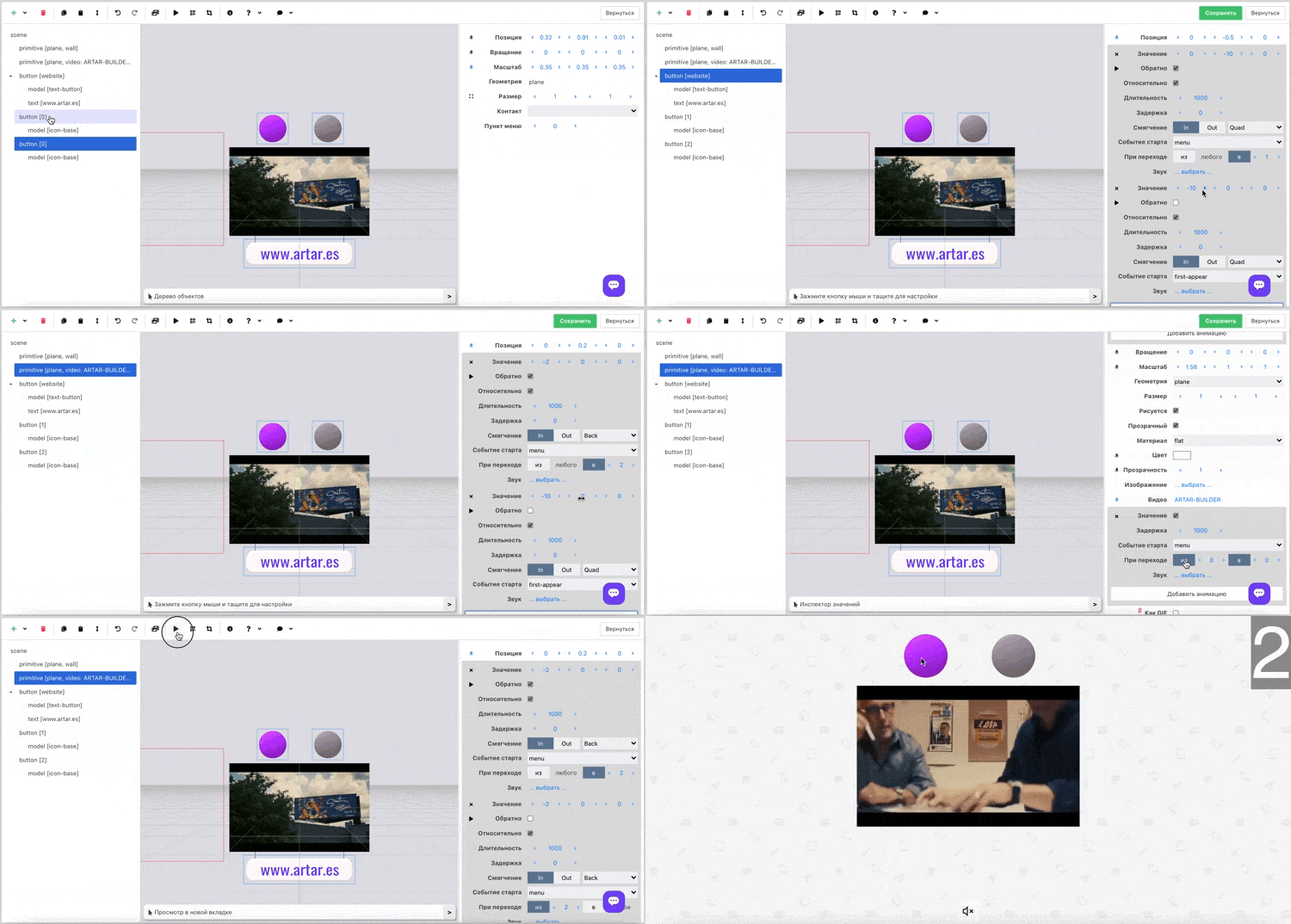
To do this, select the object you want to animate, configure the animation values and in "Start events" choose menu. An additional setting will open — "On transition." Specify the number (or "any") next to "from" and "to."
Clicking on "from" or "to" will change the digit to the value "any." This means that whatever state the scene is in, clicking the button will initiate switching the scene to the specified state.
Also the algorithm will trigger several animations if, for example, the scene transitions from item 2 to item 3. The following will fire:\
\[2 "any"] \["any" 3] \[2 3].
For clarity and a better understanding of the menu animation logic, a hint is implemented in the preview (without AR and when scanning the QR code in the editor). A number will appear in the upper right corner showing the current state of the scene.
You don't need to hide this number in any way, just download the QR code and the hint numbers will not appear when viewing the scene.
This QR code feature is described in this section.
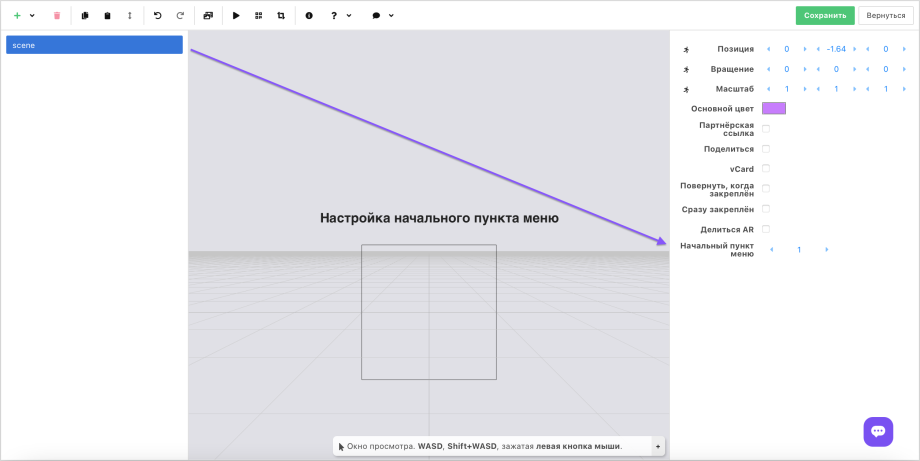
Setting the scene's start state allows more flexible configuration of the menu animation.
So a repeated click will still return the scene to the zero state, but not to the start state. There will be a separation between the start state and the state that triggers the animation on a repeated click.
For example, use this setting if you need to show an object on the first opening of the project (set the first-appear animation for this), and on the first click initiate a double animation — hide the first object and show the second.