> For the complete documentation index, see [llms.txt](https://docs.artar.es/project-creation/llms.txt). Markdown versions of documentation pages are available by appending `.md` to page URLs; this page is available as [Markdown](https://docs.artar.es/project-creation/editor.-object-properties./editor-overview.md).
# Editor overview
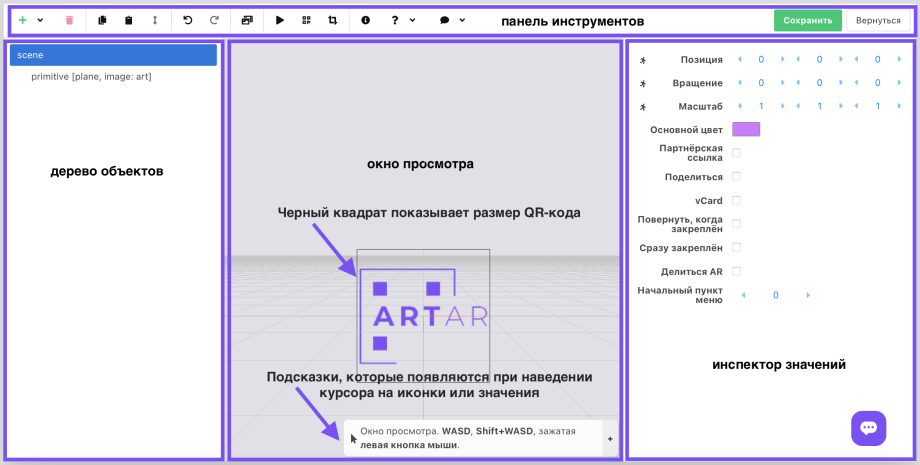
**The column on the left represents the tree of elements (objects).**\
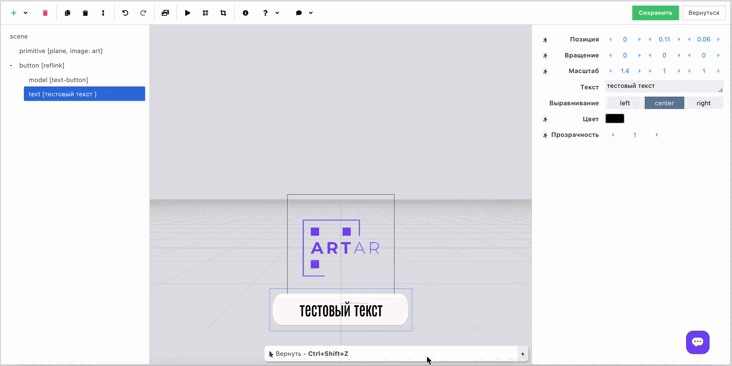
Objects are organized into a tree for convenient grouping and manipulating multiple objects as a single whole.\
The object tree always has a root element, which is called **scene** and contains all other objects.\
A scene consists of objects, an object has a type and consists of properties, and properties have values.
**In the central window you can see the objects being created.** \
Press the keyboard arrow keys up (or W), down (or S), right (or A), left (or D) to move around the scene. For alternative movement hold shift and the WSAD keys or the arrows (as described above). You can also hold the left mouse button or touchpad to look around.\
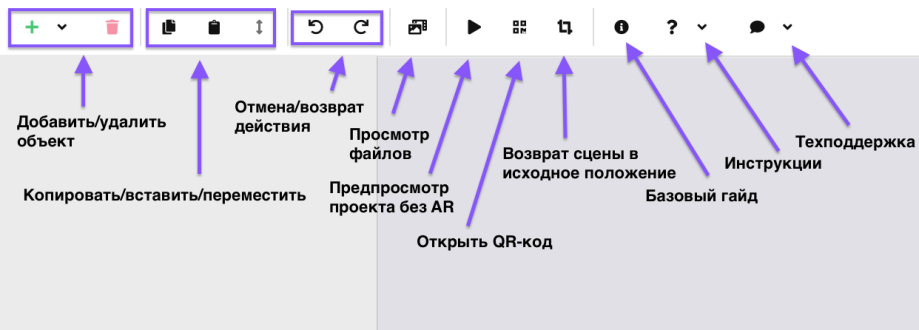
The corresponding icon resets the view to the original position.\
You can also undo and redo actions.
**The parameters of objects are displayed in the left column.**\
Select in the element tree the object to which you want to assign values. Note: the settings available for different types of objects vary somewhat, but the principle of operation is the same.
There is a basic instruction in the toolbar. (Icon ℹ️)\
Tips also appear at the bottom, in the editor's visual window, when hovering the cursor over icons or values.
The black square in the center shows the real size of the QR code and helps correctly place objects relative to it. This rule applies if the marker is a QR.\
\
*We will soon add a similar hint in the editor if the marker is an image.*
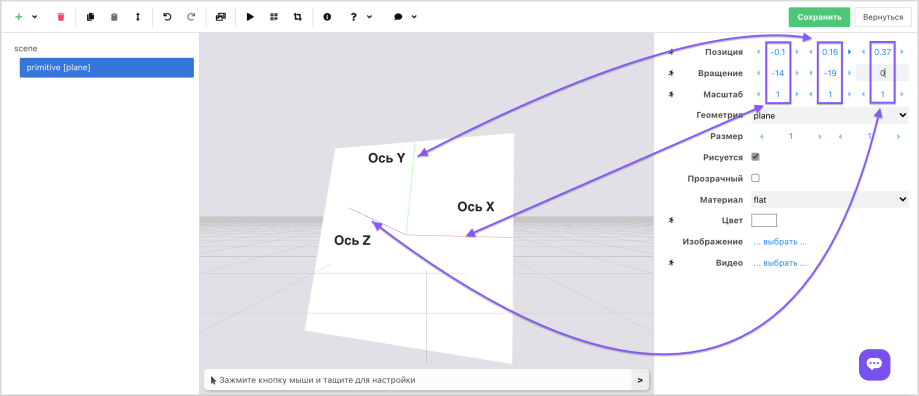
Axes are displayed on the selected object. X is red, Y is green, Z is blue. The axes allow you to understand where the center of the object is, how it is rotated and scaled.
**Do not forget to save the created project before closing the editor.**